Let your AI agent test your Flutter app with Tapir, on the web and at iPhone size
- published
- reading
- 6 min
- author
- Anılcan Çakır
- lang
- en tr
- format
- markdown
Tapir lets Claude Code, Cursor or Codex drive your running Flutter app over MCP: a Semantics snapshot with refs, real taps and typing, an effect block that says if it worked, and the app's errors. Resize the web view to iPhone width and the agent catches layout bugs a desktop window hides.
On this page
Today, I'll show you how to let your AI agent check its own work in a running Flutter app. It won't just read the code. It will tap, type, take screenshots and read the errors the app raised, on the web and at iPhone size.
Flutter 3.50 was announced on 11 November with official agent plugins, and one of their rules runs a hot reload through the MCP server every time the agent edits a file under lib/. That's good. But a reload only says the code compiled. It doesn't say the button works, or that the header still fits on a phone. Until now my loop went like this: hot reload, take a screenshot, drag the PNG into the chat, paste the widget source, and ask why the button does nothing. Every time.
Tapir closes that loop. It runs inside your debug build, and Claude Code, Cursor or Codex drive the live app through its MCP server. There is a catch, and I will be honest about it at the end.
What you'll walk away with:
- Tapir installed in a Flutter app and wired into your agent
- What the agent sees: a short snapshot with a ref for every control
- A real fill and tap, and how the agent knows the tap did something
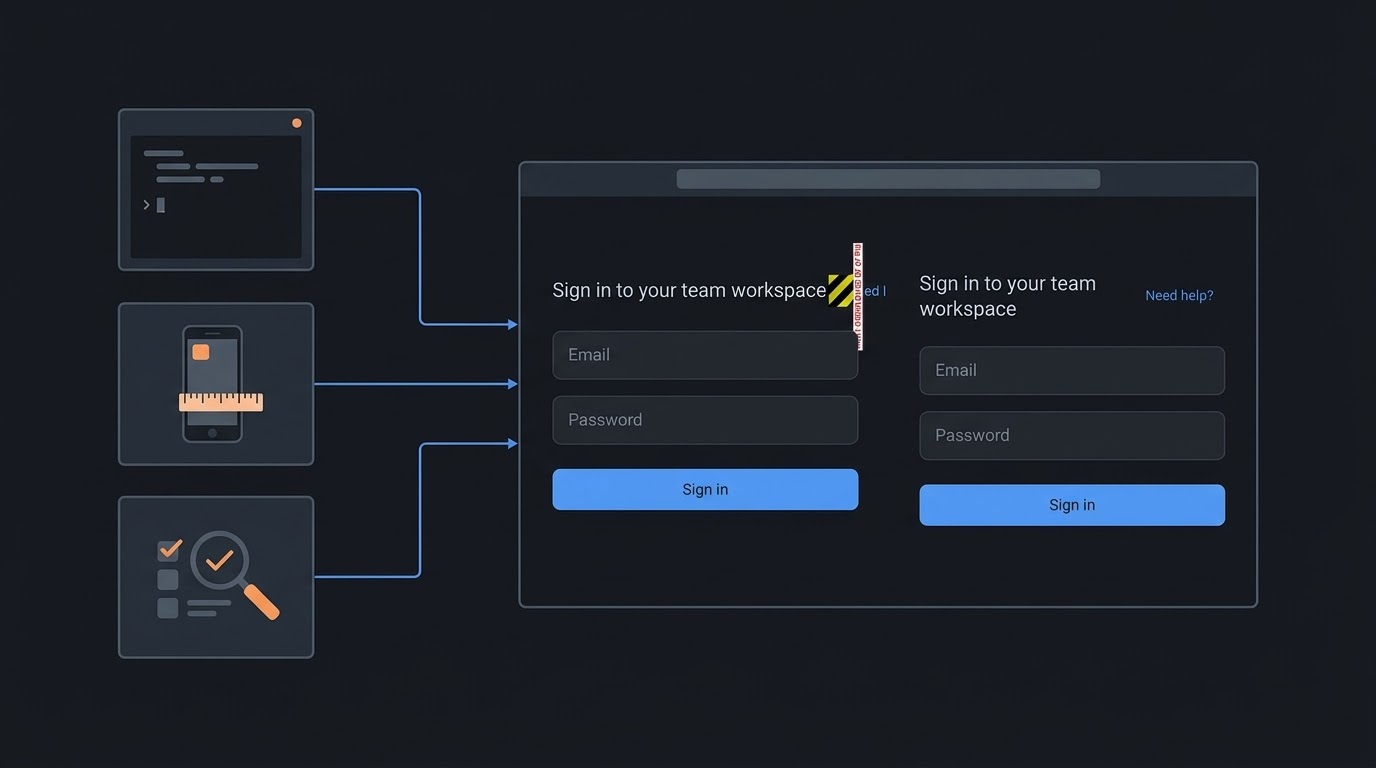
- A layout bug that a desktop browser hides and an iPhone-sized viewport shows
Let's start.
Install Tapir#
Two commands:
flutter pub add tapir dowel
dart run tapir tapir:install
tapir:install patches lib/main.dart for you. It adds the import and calls TapirPlugin.install() behind !kReleaseMode. It also scaffolds ./bin/dowel, a fast CLI wrapper, and registers Tapir as a plugin of Dowel, the CLI and MCP server it rides on. My main.dart after the install:
// lib/main.dart
import 'package:flutter/foundation.dart' show kReleaseMode;
import 'package:material_ui/material_ui.dart';
import 'package:tapir/tapir.dart';

import 'sign_in_page.dart';
import 'theme.dart';

void main() {
  WidgetsFlutterBinding.ensureInitialized();

  // Debug and profile builds only: anyone who reaches the VM Service of a build that carries tapir can drive it.
  if (!kReleaseMode) {
    TapirPlugin.install();
  }

  runApp(const SignInDemoApp());
}

/// The demo app: one sign-in page and the welcome page it opens.
class SignInDemoApp extends StatelessWidget {
  const SignInDemoApp({super.key});

  @override
  Widget build(BuildContext context) {
    return MaterialApp(
      title: 'Sign in demo',
      debugShowCheckedModeBanner: false,
      theme: appTheme,
      darkTheme: appTheme,
      themeMode: ThemeMode.dark,
      home: const SignInPage(),
    );
  }
}
The guard matters. Debug and profile builds carry Tapir, and a release build leaves it out. Without the guard, anyone who reaches the app's VM Service could drive your app.
Connect your agent#
One more command writes the MCP entry:
dart run tapir mcp:install
It writes this into .mcp.json at the project root:
{
  "mcpServers": {
    "dowel": {
      "command": "./bin/dowel",
      "args": ["mcp:serve"],
      "cwd": "."
    }
  }
}
Claude Code doesn't reload .mcp.json by itself, so run /mcp reconnect dowel once. Cursor, VS Code, Windsurf and Codex read the same entry; the MCP setup page has a line for each. When I asked the server for its tool list, it answered with 40 tapir_* tools: tapir_snap, tapir_tap, tapir_fill, tapir_screenshot, tapir_exceptions and the rest.
Start the app through Tapir#
The app has to be started by Tapir, not by a plain flutter run, because every command dials the session it records:
dart run tapir start --device=chrome --cdp-port=9333
The CDP port lets Tapir take screenshots through Chrome and resize the viewport, which we need in a minute. On a native target you pass the device instead (--device=macos, an iOS simulator's id, an Android serial). For this post I stayed on the web, because the bug I want to show only needs a narrow screen.
My example is a small sign-in page: an email, a password, a "Sign in" button and a "Need help?" link next to the title. It has one bug I left in on purpose.
What the agent sees#
The first thing an agent does is take a snapshot. Here is the same call from the terminal, so you can see what the agent gets:
./bin/dowel tapir:snap --interactiveOnly
- button "Need help?" [ref=e1]
- textbox "Email" [ref=e2]
  typeable: true
- textbox "Password" [ref=e3]
  typeable: true
- button "Sign in" [ref=e4]
It's like a guest list at the door instead of a photo of the crowd. The agent doesn't guess pixel positions from a screenshot. It reads the app's Semantics tree, and every control gets a short ref (e1, e2, ...) it can act on. Five lines cost almost nothing in context, so the agent can take a new snapshot after every step.
Let it drive#
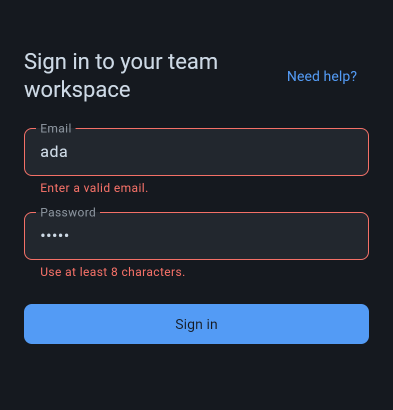
Now the agent fills the form with bad values and taps the button:
./bin/dowel tapir:fill --ref=e2 --text="ada"
./bin/dowel tapir:fill --ref=e3 --text="short"
./bin/dowel tapir:tap --ref=e4
./bin/dowel tapir:snap --grep="Enter|Use at"
✓ Filled e2
✓ Filled e3
✓ Tapped e4 (target unchanged)
- textbox "Email": "ada" [ref=e2]
  typeable: true
  - text "Enter a valid email."
- textbox "Password": "•••••" [ref=e3]
  typeable: true
  - text "Use at least 8 characters."
These are real pointer and key events going into the widget tree, so the validators run the way they run for a person.
A green tick only says the event left Tapir. It doesn't say the widget took it. So the agent reads the effect block (--json prints it):
{"effect": {"kind": "text", "verified": true, "value": "[email protected]"}}
{"effect": {"kind": "treeChanged", "changed": false, "routeChanged": true}}
The first is a fill that stuck. The second is the tap on "Sign in" with valid values: the button itself didn't change, but a new route opened (routeChanged, new in Tapir 1.1.0). The next snapshot shows text "Welcome back, [email protected]".
What if the agent taps something it can't reach? Before a tap, Tapir checks that the widget is enabled, on screen, stable and not covered. I tapped the old "Sign in" ref again while the welcome page was on top:
Widget ref=e4 is not actionable: obscured by other widget (top=_RenderInkFeatures)
The refusal names the reason (obscured by, not enabled, off-viewport, not stable), so the agent doesn't retry blindly or add a Future.delayed and hope.
The bug only an iPhone-sized screen shows#
On my desktop Chrome window the page looks fine, and tapir:exceptions returns an empty list. Now let's give it iPhone 15 Pro's width:
./bin/dowel tapir:resize_viewport --width=393 --height=852 --dpr=2.0 --mobile --touch --hold
--hold keeps the size while the agent works, so run it in the background (tapir:device_profile --preset=iphone-15-pro sets the same size for one command only). Then a new snapshot:
✗ ⚠ 1 render error(s) captured on this screen (run tapir:exceptions / tapir_exceptions for full detail):
✗   - overflow: A RenderFlex overflowed by 67 pixels on the right.
- button "Need help?" [ref=e1]
  overflow: true
The agent didn't need a screenshot to find this. The snapshot puts the error on top and marks the widget that is pushed off the screen. The title and the link sit in a Row, and the title has no room to wrap. The fix is one widget, Expanded around the title:
// lib/sign_in_page.dart
import 'package:material_ui/material_ui.dart';

import 'theme.dart';

/// Email and password form that opens [WelcomePage] once both fields pass validation.
class SignInPage extends StatefulWidget {
  const SignInPage({super.key});

  @override
  State<SignInPage> createState() => _SignInPageState();
}

class _SignInPageState extends State<SignInPage> {
  final GlobalKey<FormState> _formKey = GlobalKey<FormState>();
  final TextEditingController _email = TextEditingController();
  final TextEditingController _password = TextEditingController();

  @override
  void dispose() {
    _email.dispose();
    _password.dispose();
    super.dispose();
  }

  void _submit() {
    if (!_formKey.currentState!.validate()) {
      return;
    }

    Navigator.of(context).push(
      MaterialPageRoute<void>(
        builder: (BuildContext context) => WelcomePage(email: _email.text.trim()),
      ),
    );
  }

  @override
  Widget build(BuildContext context) {
    return Scaffold(
      body: SafeArea(
        child: Center(
          child: ConstrainedBox(
            constraints: const BoxConstraints(maxWidth: 480),
            child: Padding(
              padding: const EdgeInsets.all(24),
              child: Form(
                key: _formKey,
                child: Column(
                  mainAxisSize: MainAxisSize.min,
                  crossAxisAlignment: CrossAxisAlignment.stretch,
                  children: [
                    const _Header(),
                    const SizedBox(height: 24),
                    TextFormField(
                      controller: _email,
                      keyboardType: TextInputType.emailAddress,
                      decoration: const InputDecoration(labelText: 'Email'),
                      validator: _validateEmail,
                    ),
                    const SizedBox(height: 16),
                    TextFormField(
                      controller: _password,
                      obscureText: true,
                      decoration: const InputDecoration(labelText: 'Password'),
                      validator: _validatePassword,
                    ),
                    const SizedBox(height: 24),
                    FilledButton(
                      onPressed: _submit,
                      child: const Text('Sign in'),
                    ),
                  ],
                ),
              ),
            ),
          ),
        ),
      ),
    );
  }

  static String? _validateEmail(String? value) {
    final String email = value?.trim() ?? '';

    if (email.isEmpty) {
      return 'Enter your email.';
    }

    return email.contains('@') ? null : 'Enter a valid email.';
  }

  static String? _validatePassword(String? value) {
    return (value ?? '').length < 8 ? 'Use at least 8 characters.' : null;
  }
}

/// The title row: the page name and a help link side by side.
class _Header extends StatelessWidget {
  const _Header();

  @override
  Widget build(BuildContext context) {
    return Row(
      children: [
        Expanded(
          child: Text(
            'Sign in to your team workspace',
            style: Theme.of(context).textTheme.titleLarge?.copyWith(color: ink),
          ),
        ),
        const SizedBox(width: 12),
        TextButton(
          onPressed: () {},
          child: const Text('Need help?'),
        ),
      ],
    );
  }
}

/// Shown after a successful sign-in.
class WelcomePage extends StatelessWidget {
  const WelcomePage({
    super.key,
    required this.email,
  });

  final String email;

  @override
  Widget build(BuildContext context) {
    return Scaffold(
      appBar: AppBar(backgroundColor: surface),
      body: Center(
        child: Text(
          'Welcome back, $email',
          style: Theme.of(context).textTheme.titleMedium?.copyWith(color: ink),
        ),
      ),
    );
  }
}
tapir:hot_reload_and_snap reloads the app and returns a fresh snapshot, the screen and the recent errors in one round trip. The overflow flag is gone from the snapshot.
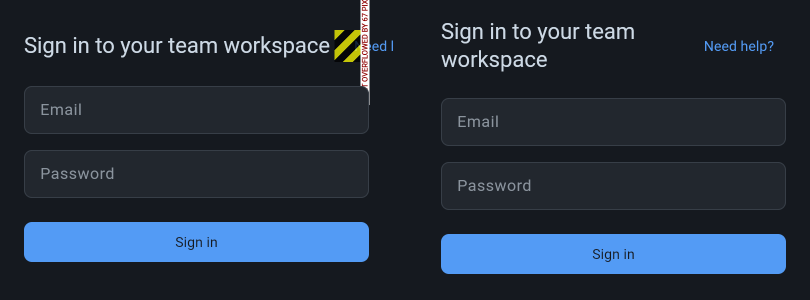
That's the loop I wanted: the agent changes the code, reloads, checks the screen at the size the user has, and only then says it is done.
The theme#
The screenshots are dark because the example uses a dark theme in this blog's colours. If you want your copy to look the same, here is the file:
// lib/theme.dart
import 'package:material_ui/material_ui.dart';

const Color surface = Color(0xFF15191F);
const Color panel = Color(0xFF22272E);
const Color line = Color(0xFF373E47);
const Color accent = Color(0xFF539BF5);
const Color ink = Color(0xFFCDD9E5);
const Color faint = Color(0xFF8B949E);
const Color danger = Color(0xFFF47067);

/// A dark theme in the blog's palette, so screenshots sit calmly on a dark page.
final ThemeData appTheme = ThemeData(
  brightness: Brightness.dark,
  scaffoldBackgroundColor: surface,
  colorScheme: const ColorScheme.dark(
    surface: surface,
    primary: accent,
    onPrimary: surface,
    onSurface: ink,
    error: danger,
  ),
  inputDecorationTheme: InputDecorationTheme(
    filled: true,
    fillColor: panel,
    hintStyle: const TextStyle(color: faint),
    labelStyle: const TextStyle(color: faint),
    enabledBorder: OutlineInputBorder(
      borderRadius: BorderRadius.circular(8),
      borderSide: const BorderSide(color: line),
    ),
    focusedBorder: OutlineInputBorder(
      borderRadius: BorderRadius.circular(8),
      borderSide: const BorderSide(color: accent),
    ),
    errorBorder: OutlineInputBorder(
      borderRadius: BorderRadius.circular(8),
      borderSide: const BorderSide(color: danger),
    ),
    focusedErrorBorder: OutlineInputBorder(
      borderRadius: BorderRadius.circular(8),
      borderSide: const BorderSide(color: danger),
    ),
  ),
  filledButtonTheme: FilledButtonThemeData(
    style: FilledButton.styleFrom(
      backgroundColor: accent,
      foregroundColor: surface,
      minimumSize: const Size.fromHeight(48),
      shape: RoundedRectangleBorder(
        borderRadius: BorderRadius.circular(8),
      ),
    ),
  ),
);
Where Tapir is the wrong tool#
- It is not your regression suite. Tapir drives a live app; it writes no test file. Keep
integration_testor Patrol in CI for flows that must never break. The official Dart and Flutter MCP server has a Flutter Driver tool and a prompt that turns a user journey into a driver test, which is closer if a test file is what you want. - Debug and profile builds only. A release build has no Tapir in it, on purpose.
- The web session trades one thing away. With
--cdp-port, Flutter runs on theweb-serverdevice, which can't evaluate Dart expressions, sotapir_evaluatereturns an error there. Start without the port when you need it. - A widget test can catch this overflow too, if you write one at that width. Tapir is for the screens nobody wrote a test for yet, while the agent is still building them.
Install#
flutter pub add tapir dowel
dart run tapir tapir:install
dart run tapir mcp:install
The docs, every command and the full MCP tool list are on the Tapir page. If your agent reads skills, npx skills add anilcancakir/tapir teaches it the rules above.
That's all. Have a nice day.